

Beckhoff Nail Operating Terminal CP7032-1031-0010
Beckhoff Nail Operating Terminal CP7032-1031-0010
Functional description
Switch on
Switching off
Operation
i Note
Type-dependent number of
The Control Panel does not have its own mains power switch. As soon as
the power supply is switched on the control panel is activated.
Control software, as typically applied in Control Panels, enables the
assignment of different rights to all users. A user who is not entitled to shut
down the software may not switch off the Control Panel as an attempt to
shut it down when the software is running could result in the loss of
software data on the Compact Flash memory card.
If the control panel is shut down while the software is writing a file onto the
Compact Flash memory card, the file will be destroyed. Control software
typically writes something to the CF memory card every few seconds, so
that the probability of causing damage by switching off while the software is
running is very high.
The Control Panel’s membrane keypad may only be actuated by fingertips.
Attempts to actuate it with other objects can easily result in the destruction
of the device. Neither may the membrane keypad be operated with a touch
screen pen.
The touch screen may only be actuated by finger tips or with the touch
screen pen. The operator may wear gloves but there must be no hard
particles such as metal shavings, glass splinters embedded in the glove.
Keyboard codes
Depending on the precise type, the Control Panel can have fewer keys
than those described here.
The cursor is the blinking character that marks the point at which the next
character entered will be displayed. The cursor is also known as the
insertion point. The cursor keys each move the cursor one place in the
associated direction.
The Home key moves the cursor to the beginning of the line, while the End
key moves it to the end of the line.
The Pg Up key scrolls one page back, the Pg Dn key scrolls one page
forward.
The Tab key takes the cursor to the next input field, while Shift and Tab
moves to the previous input field.
The mouse cursor can be moved over the screen with the aid of the touch
screen or of the touch pad (optional). The keys correspond to the left and
right hand keys of a Microsoft mouse.
The Del key deletes the character to the right of the cursor.
The Ins key causes characters to the right of the cursor to be overwritten.
The overwrite mode is cancelled by pressing the key again.
Print-Screen prints a hard copy of a text screen on the printer.
The Pause key stops the computer until another key is pressed (only under
MS-DOS).
Your input is confirmed with the Enter key.
Backspace deletes the character to the left of the cursor.
If the Shift key is pressed at the same time as another key, then instead of
the numbers you obtain the character printed above the number, and you
obtain upper case letters instead of lower case letters.
Pressing the Caps Lock key once activates and locks the Shift key.
Pressing the Shift key cancels this function.
Rather like the effect of the Shift key, Ctrl and Alt also change the meaning
of another key that is pressed at the same time.
This key brings up the Start menu of the operating system in use (Windows
95. 98. ME, NT, 2000. XP).
Pressing this key opens the property sheet of the active (or marked) object.
The Esc key has the effect of closing dialog windows and of interrupting
some of the computer’s working operations.
All other keys bring the character printed on them onto the display at the
position of the cursor.
The meaning of the function keys, F1 to F10. is determined by the software
and is displayed at the bottom edge of the display.
The function of the special keys above the display is also determined by
the software. The function is displayed at the top edge of the display.
The special keys each have an orange LED controlled by the software
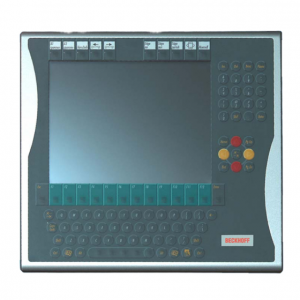
CP7032-1031-0010